
Your team
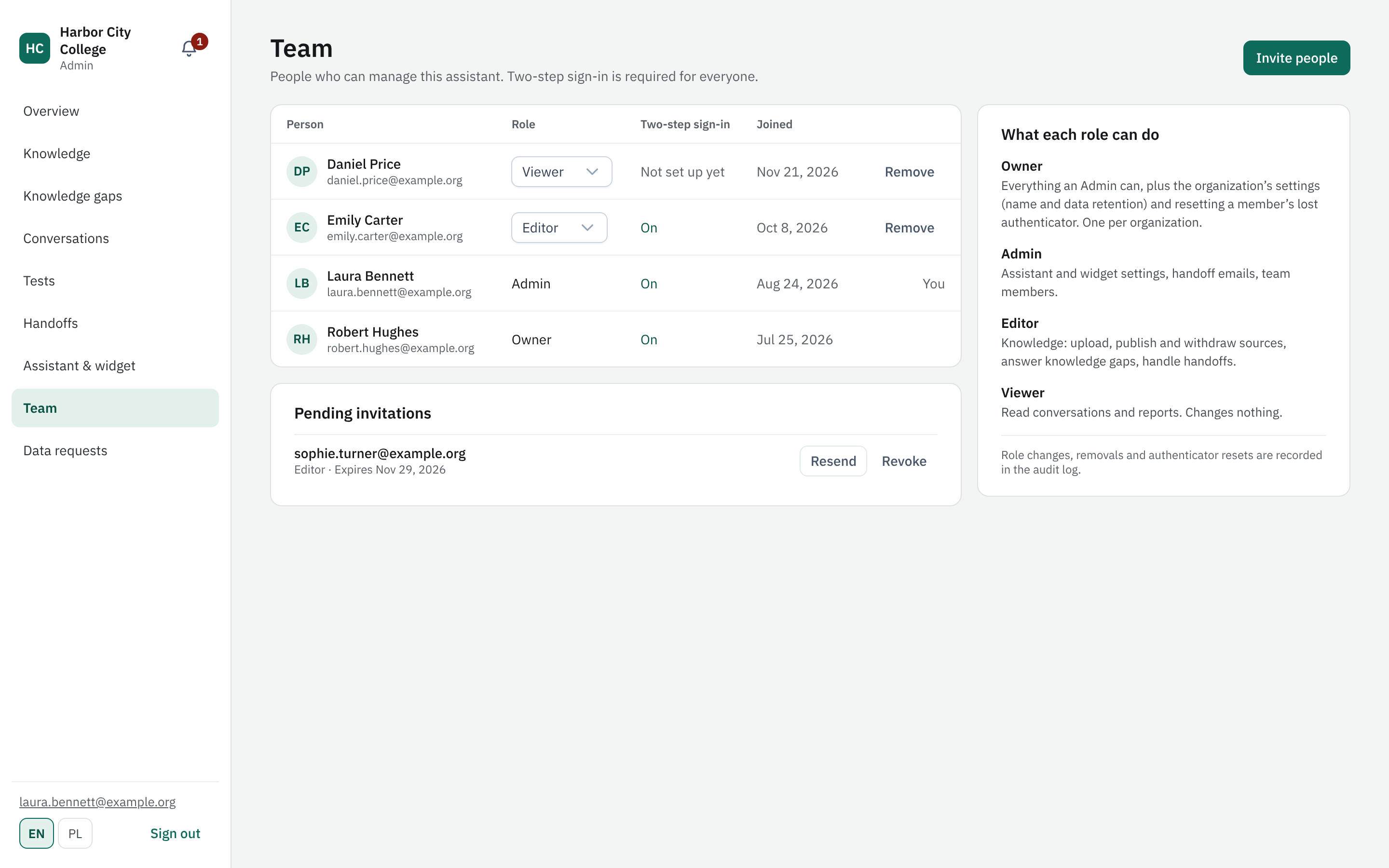
On a paid plan several people can work on your assistant: someone keeps the knowledge up to date, someone answers visitors who asked for a person, someone only reads the chats. Each of them has their own account and a role that decides what they can change. The Team page lists them and the invitations waiting for an answer.
Everyone on the team sees the page. Owners and Admins invite people, change their roles and remove them. The free plan is for one person, the Owner, so the menu has no Team. If people from a paid plan are still on the team or invited, Settings shows a Team card that opens this page: they are marked Paused and cannot open the organization until it moves to a plan with room for them. Remove them or revoke the invitations there.
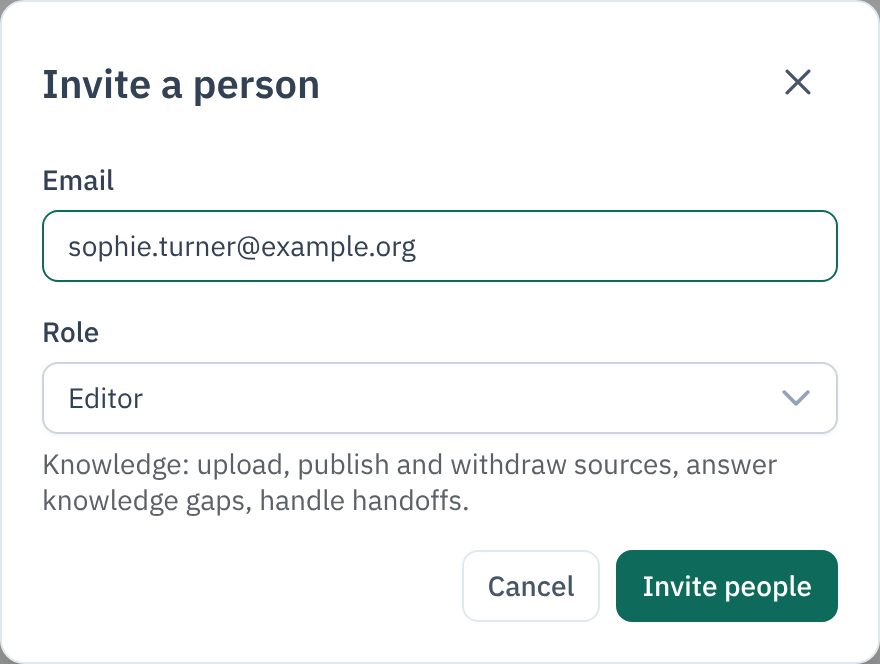
Invite a person
- Select Invite people at the top of the page.
- Enter the person’s email address and choose their role. Under the role you see what it can do.
- Select Invite people in the window.
The person gets an email with a link that works for 7 days. What they do next is in Your first sign-in. Until they accept, or the link runs out, the invitation is under Pending invitations, with its role and the day it expires.
Inviting asks for the 6-digit code from your authenticator app if you signed in on a trusted browser without it.
- Resend sends the email again, with a new link that works for another 7 days. Use it when the email did not arrive or got lost.
- Revoke cancels the invitation: the link stops working.
- Inviting the same address again does not add a second invitation: it changes the role and sends a new link. When the link has run out, the invitation leaves the list: invite the address again.
An invitation waiting for an answer takes a place on the team, as a member does. If your plan limits the size of the team and every place is taken, the page says so and Invite people is unavailable: remove someone or revoke an invitation first. The Owner can also ask for a larger plan from there; Admins see that the Owner can.
Change a role
In the Role column, choose another role for the person. It applies at once. Like inviting, it asks for your code if you signed in on a trusted browser without it.
You cannot change your own role. The Owner’s role cannot be changed, and nobody can be made an Owner: each organization has exactly one.
Remove a person
Select Remove in the person’s row and confirm. They lose access to the organization right away. Their account stays, so they keep any other organization they belong to. Their place on the team is free again. The Owner cannot be removed.
Two-step sign-in column
On means the person signs in with a code from their authenticator app. Not set up yet means they have not signed in since they joined, have not finished setting it up, or their authenticator app was reset. On a paid plan they cannot open the admin app until they do. On the free plan two-step sign-in is offered at every sign-in and may be skipped, unless the person is also in an organization on a paid plan.
When someone has lost their phone
A person who lost their phone or authenticator app signs in with a recovery code, if they kept one. If they have none left, the Owner resets their authenticator app:
- Select Reset next to On in the person’s row.
- Enter the 6-digit code from your own authenticator app, or one of your own recovery codes, and select Reset authenticator.
Their old codes and recovery codes stop working, and they are signed out everywhere. At their next sign-in, after the password, they scan a new code, as the first time. They get an email saying you reset it.
You cannot reset your own authenticator app here. When a person also belongs to another organization, their row says Only support can reset: one organization’s Owner cannot reset sign-in to the others. In both cases, write to us at support@getasquo.com.
Role changes, removals and authenticator resets are recorded in the organization’s audit log.