
Start free
The free plan puts an assistant on one website of yours, answering visitors from the pages of that website. You sign up yourself, add a short code to your website and we check the application. After approval we read your website and the chat appears there by itself.
The free plan is for one person, the Owner, and one website. The assistant answers up to 20 questions a day and 100 a month, all visitors together. You can correct its answers with up to 20 Q&A of your own. Uploading documents, a team, and visitors’ requests to be contacted by a person are part of paid plans. Every number is on the Limits page.
Create your account
Open the Start free page and fill in:
- Work email. You will sign in with it, and we write to it about your application. Addresses from temporary mailbox services cannot sign up.
- Password. At least 12 characters, with at least 4 different ones. A short sentence is easy to remember and long enough.
- Company name. Your visitors see it in the privacy notice, if you choose ours.
- Your website. The website the assistant answers from and appears on, such as
example.com. A website can apply for the free plan only once; if yours already has and you did not do it, write to us at support@getasquo.com. - Country. It lets the assistant hide the national ID numbers visitors type in, such as a PESEL in Poland.
Tick that you accept the Terms of Service and the Data Processing Agreement, and select Create account.
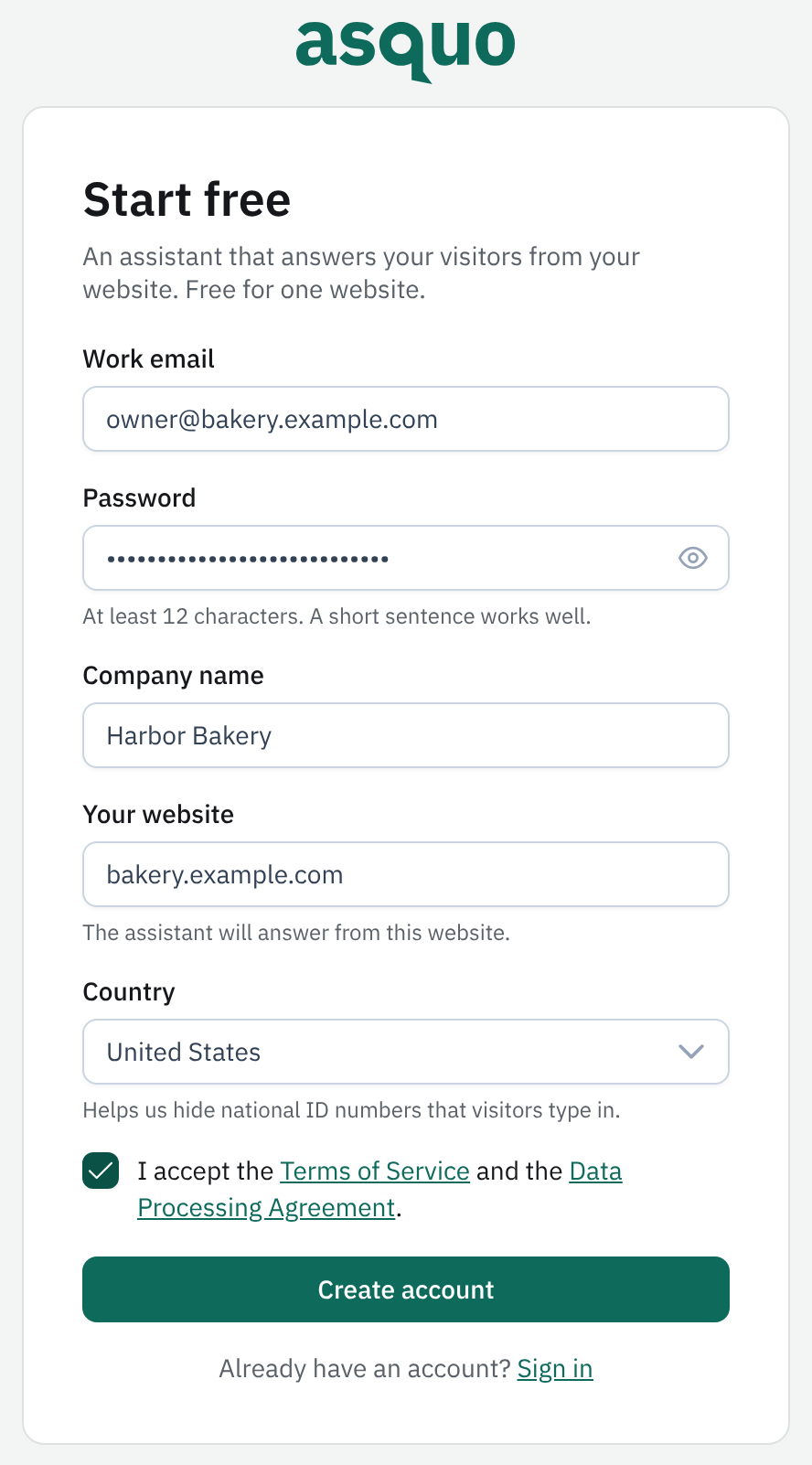
One network can create up to 3 accounts an hour and 10 a day. If you see “Too many signups from your network”, try again later.
Confirm your email address
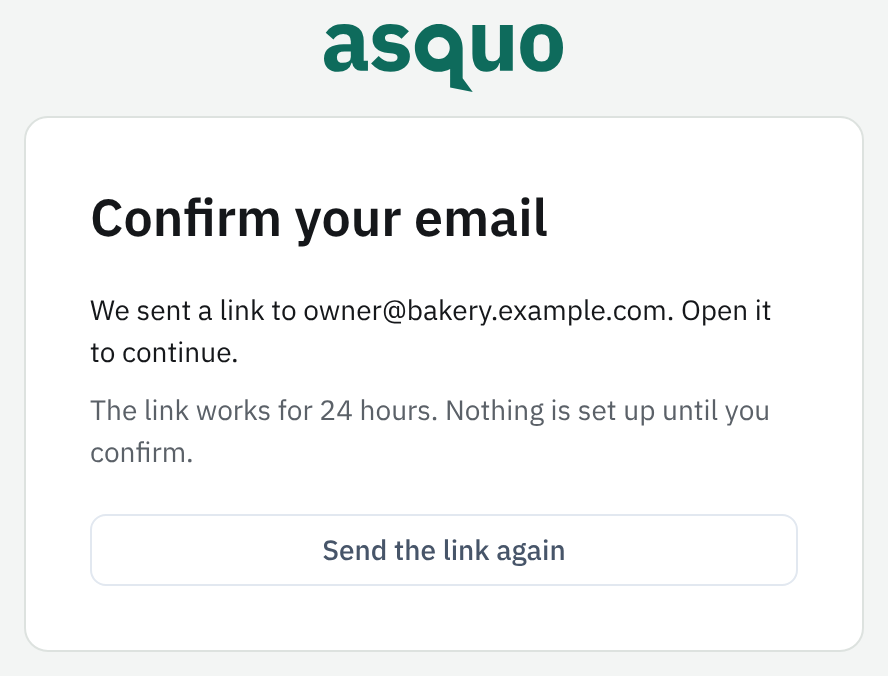
We send you an email with a link. It works for 24 hours, and nothing is set up until you open it. If it does not arrive, look in your spam folder or select Send the link again; one account gets at most 3 such emails an hour.
The link opens a page that asks for the password you chose. Enter it and select Confirm and continue.
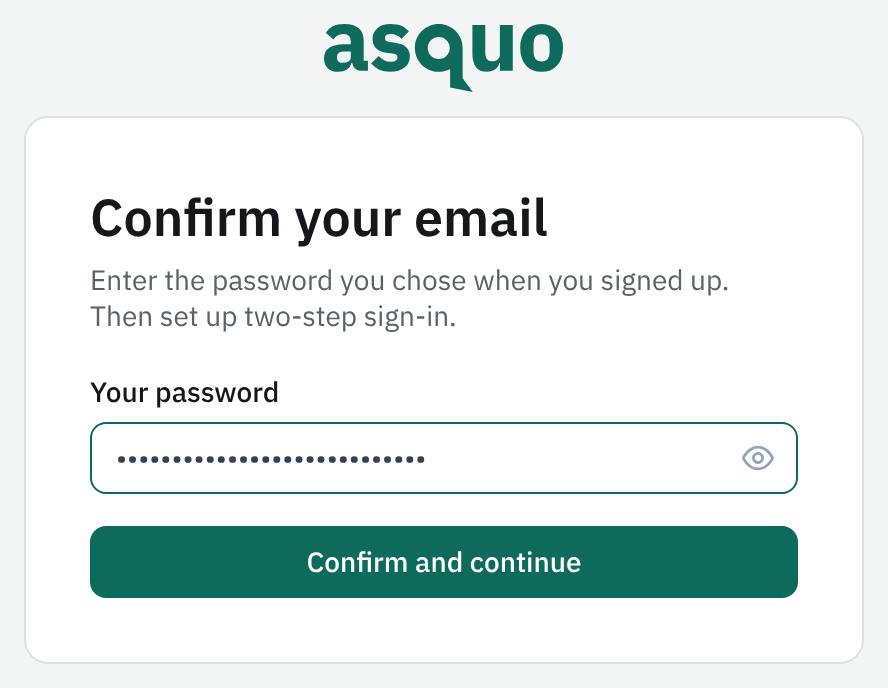
If the address already has an account, we email you that it does, with a link to the sign-in page. If the page says the password is not the one chosen when signing up, someone else may have signed up with your address: sign up again, which replaces their account.
Two-step sign-in: now or later
Next, the page offers two-step sign-in: each sign-in then also asks for a 6-digit code from an app on your phone, so your account stays safe even if your password leaks. On the free plan it is optional.
- To turn it on, scan the code with an authenticator app, such as Google Authenticator, Microsoft Authenticator or 1Password, enter the 6-digit code the app shows and select Turn on. Then save your recovery codes, as described in Your first sign-in.
- To go on without it, select Not now. We offer it again each time you sign in.
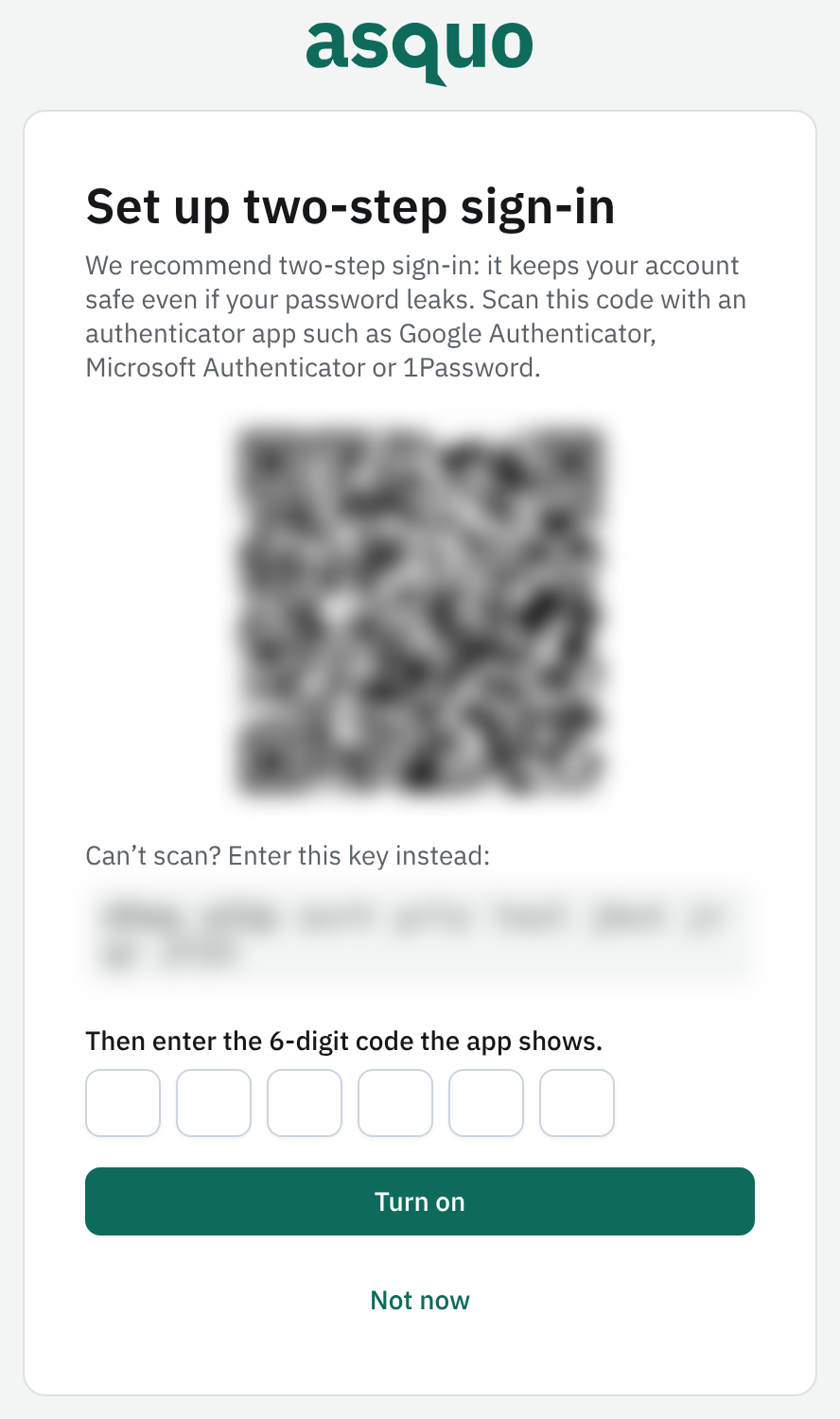
On a paid plan two-step sign-in is required. If your organization moves to one, you are signed out and set it up at your next sign-in.
Add the code to your website
Your application page opens. It shows four steps: the code on your website, a privacy notice for the chat, our review, and the assistant starting. You can do the first two in either order.
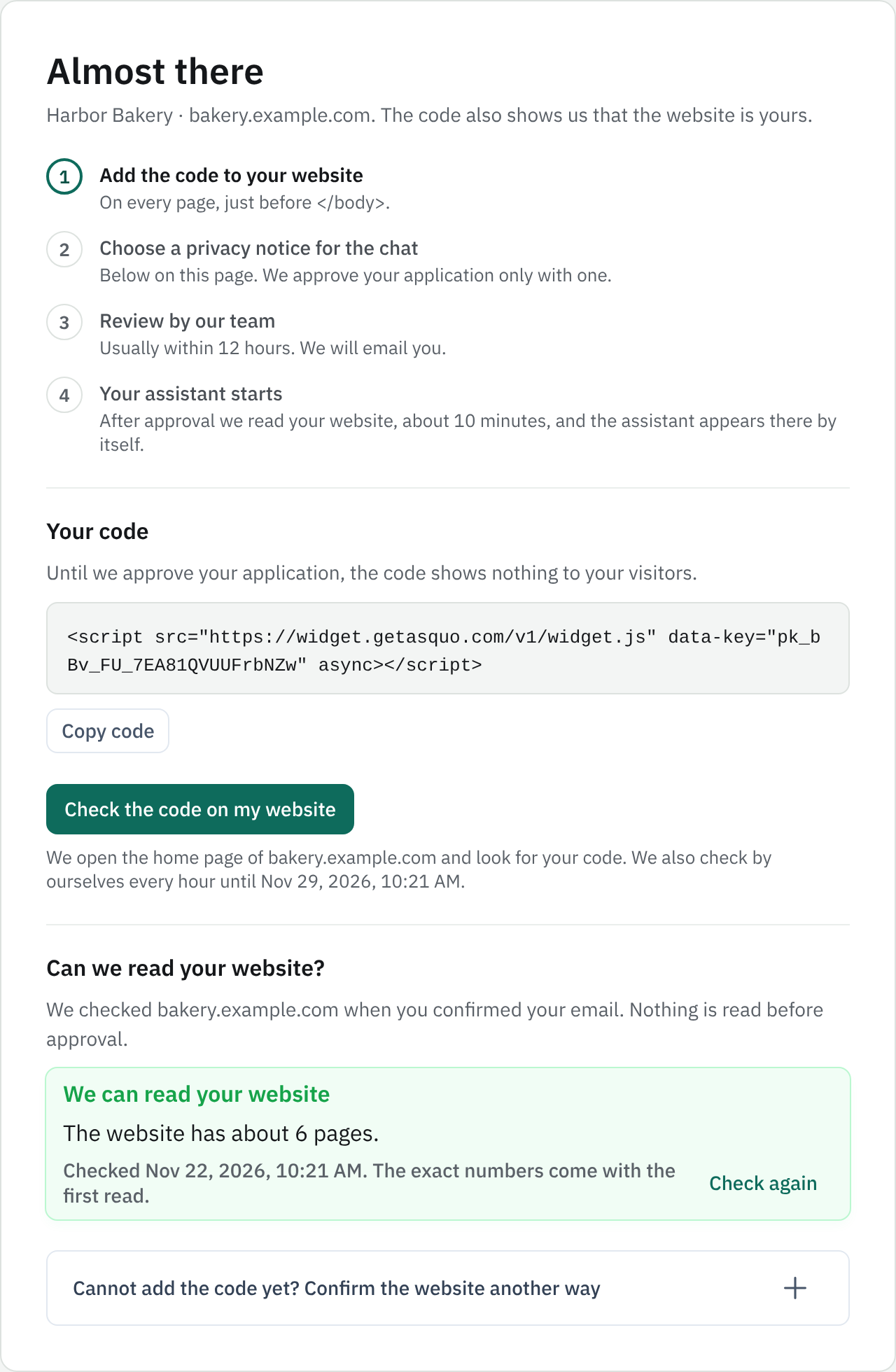
- Select Copy code and paste the code into your website, on every page, just before
</body>. Until we approve your application, it shows nothing to your visitors. - Select Check the code on my website. We open your home page and look for the code, so it must be there too, not only on other pages.
If we do not find it, clear your website’s cache and check again. We also check by ourselves every hour for 7 days after you sign up; after that, check with the button.
The code also shows us that the website is yours. If you cannot add it yet, open Cannot add the code yet? Confirm the website another way: add the tag shown there inside <head> of your home page, or the TXT record to your domain. The chat then needs the code on your pages later; we tell you so in the email after approval.
Can we read your website?
When you confirm your email, we check that your website lets Asquo in: its robots.txt, its home page and its sitemap. Nothing is read before approval. The result is on the application page:
- We can read your website shows about how many pages it has. On the free plan we read up to 100 pages.
- If something stops us, such as robots.txt or a firewall like Cloudflare, the page says what and how to let Asquo in. Fix it, then select Check again.
Choose a privacy notice
Visitors open a privacy notice from the chat, next to the note that they are talking to an AI. Your company is responsible for visitors’ data, so the notice is yours. Choose one:
- Our privacy policy: the address of a page on your website that also covers the chat.
- Asquo template notice: we publish a short notice for you, which says that your company is responsible for visitors’ data and gives an address for questions about it. The address is public, so spam may reach it: use a separate one such as
privacy@rather than a personal one.
Select Save. With the template, you can then open the notice as visitors will see it. You can change your choice until we decide on your application, and later on the Assistant & widget page. The choice is required: we approve an application only once a privacy notice is saved.
Our review
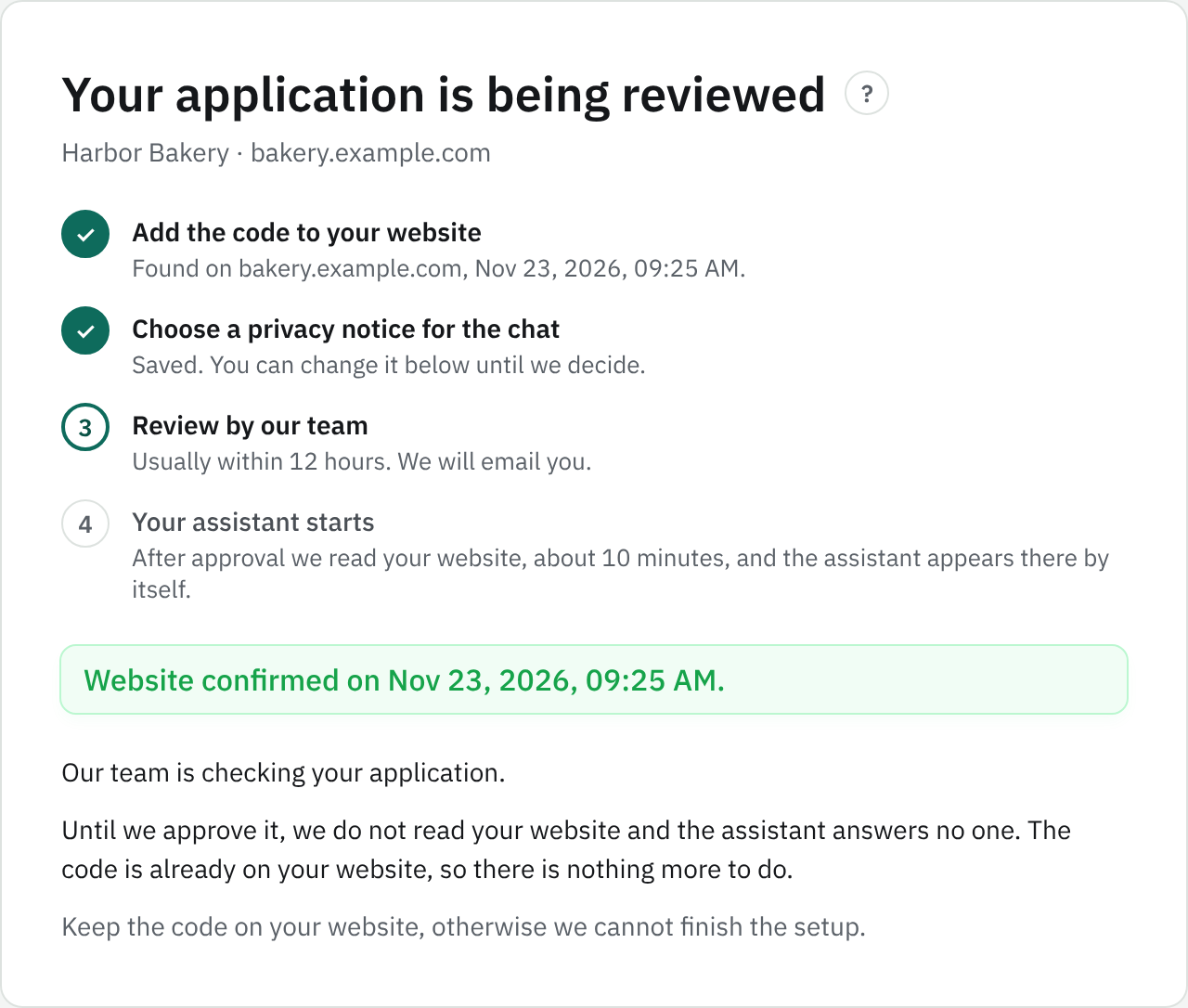
Once the website is confirmed and a privacy notice is saved, the page says Your application is being reviewed. We usually decide within 12 hours and email you. Until then we do not read your website and the assistant answers no one. Keep the code on your website, otherwise we cannot finish the setup.
- You are on the waiting list. All free places are taken right now. Your application waits in line, and we email you when a place opens.
- We could not approve your application. The page and an email give our reason. If you think it is a mistake, write to us at support@getasquo.com. The application and its organization are deleted 30 days later; you can remove the code from your website.
After approval
We read your website, which takes about 10 minutes, and set up the assistant: its suggested questions and what it can help with come from your website. Then we email you:
- Your assistant is live: the chat is on your website, from the code you added.
- Add the code to your website: you confirmed the website another way, so copy the code from the Assistant & widget page into your website.
- Set up but not switched on yet: we could not read any text from your website, so the assistant would have nothing to answer from. The email says how to check the website on the Knowledge page, read it again and then switch the chat on.
Sign in to see what the assistant knows. Ask it a few questions with Test the assistant on the Knowledge page, and look at the suggested questions, the welcome text and the colors on the Assistant & widget page.