
Handoff tab
The Handoff tab of the Assistant & widget page sets how visitors ask to be contacted by a person, where their requests go and when your team replies. Handoff comes with paid plans: on the free plan the tab has a lock and says On paid plans. The Owner and Admins can change it; everyone else sees it.
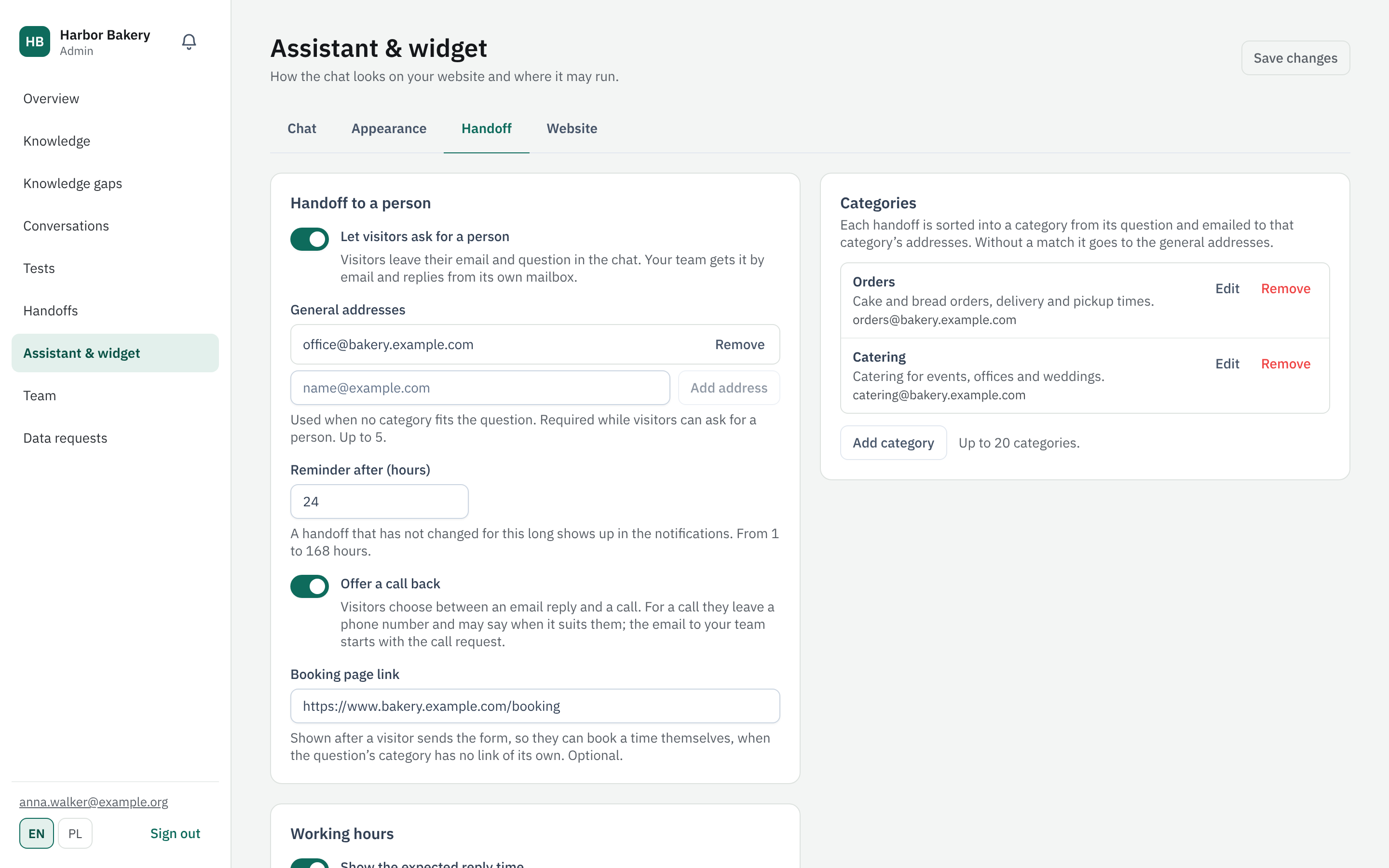
Select Save changes at the top of the page after you change Handoff to a person or Working hours. Categories are saved in their own dialog and apply at once.
Handoff to a person
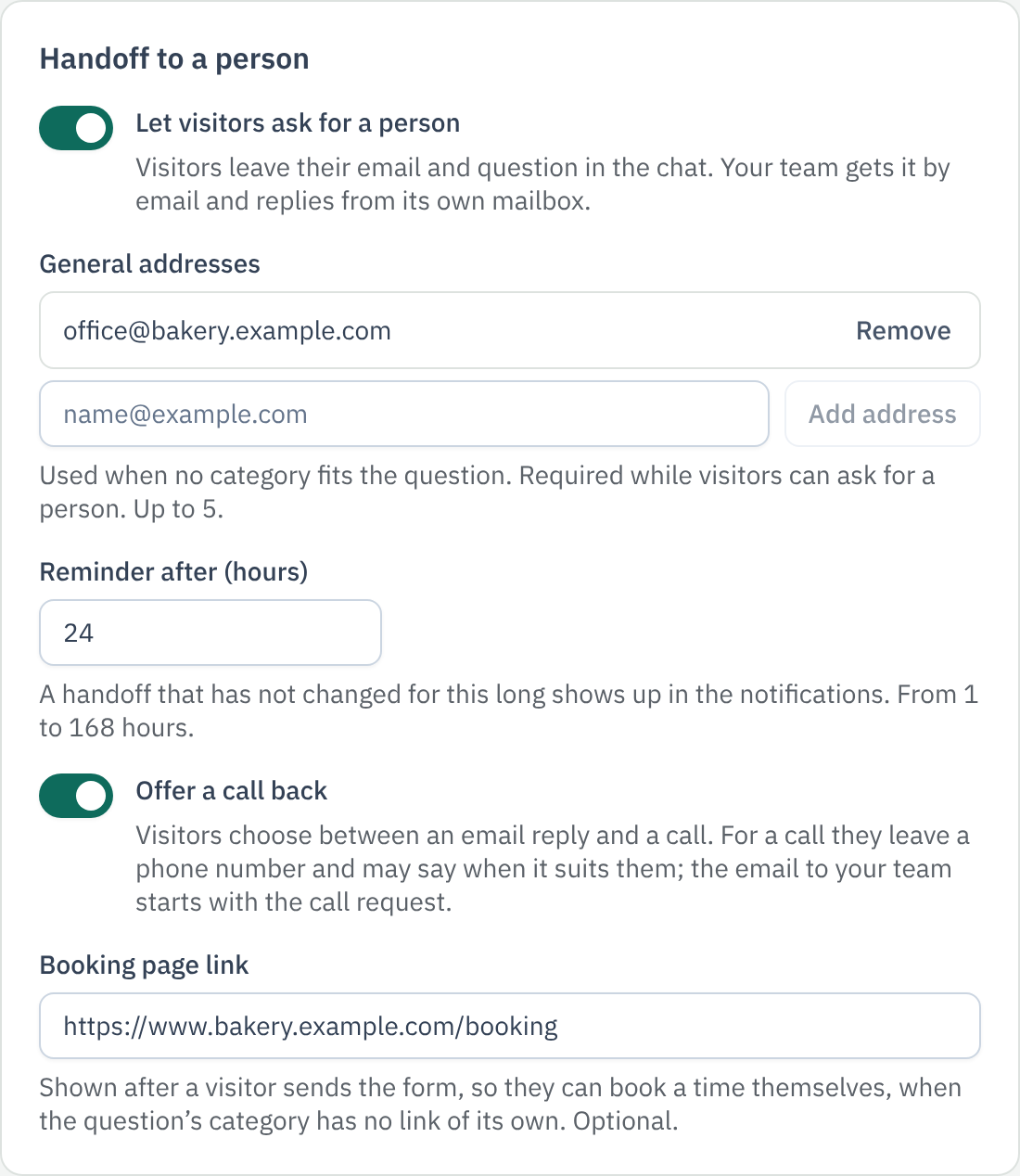
- Let visitors ask for a person: shows the contact form in the chat. See when the chat offers it.
- General addresses: up to 5 staff email addresses. A request that fits no category goes here, so at least one is needed while visitors can ask for a person. Use addresses your team reads every day, such as a shared mailbox.
- Reminder after (hours): a request whose status has not changed for this long, while it is New or In progress, shows up in the notifications under the bell. One assigned to someone reminds that person; one assigned to nobody reminds everyone who can take it. New organizations start with 48 hours; you can set from 1 hour to 168 hours. With working hours on, only working hours count.
Offer a call back
With Offer a call back on, visitors choose between an email reply and a call. For a call they leave a phone number and may say when a call suits them. The email to your team then starts with the call request and the number, so it is not missed, and the request on the Handoffs page shows it with the contact details.
A phone number has 7 to 15 digits and may start with +; spaces, dashes, dots and brackets between the digits are fine.
Booking page link
A page where visitors book a time themselves, such as your calendar booking page, starting with https://. After a visitor sends the form, the chat offers Book a time with this link. A category can have its own link, which its visitors get instead. Leave it empty if you do not take bookings.
Working hours
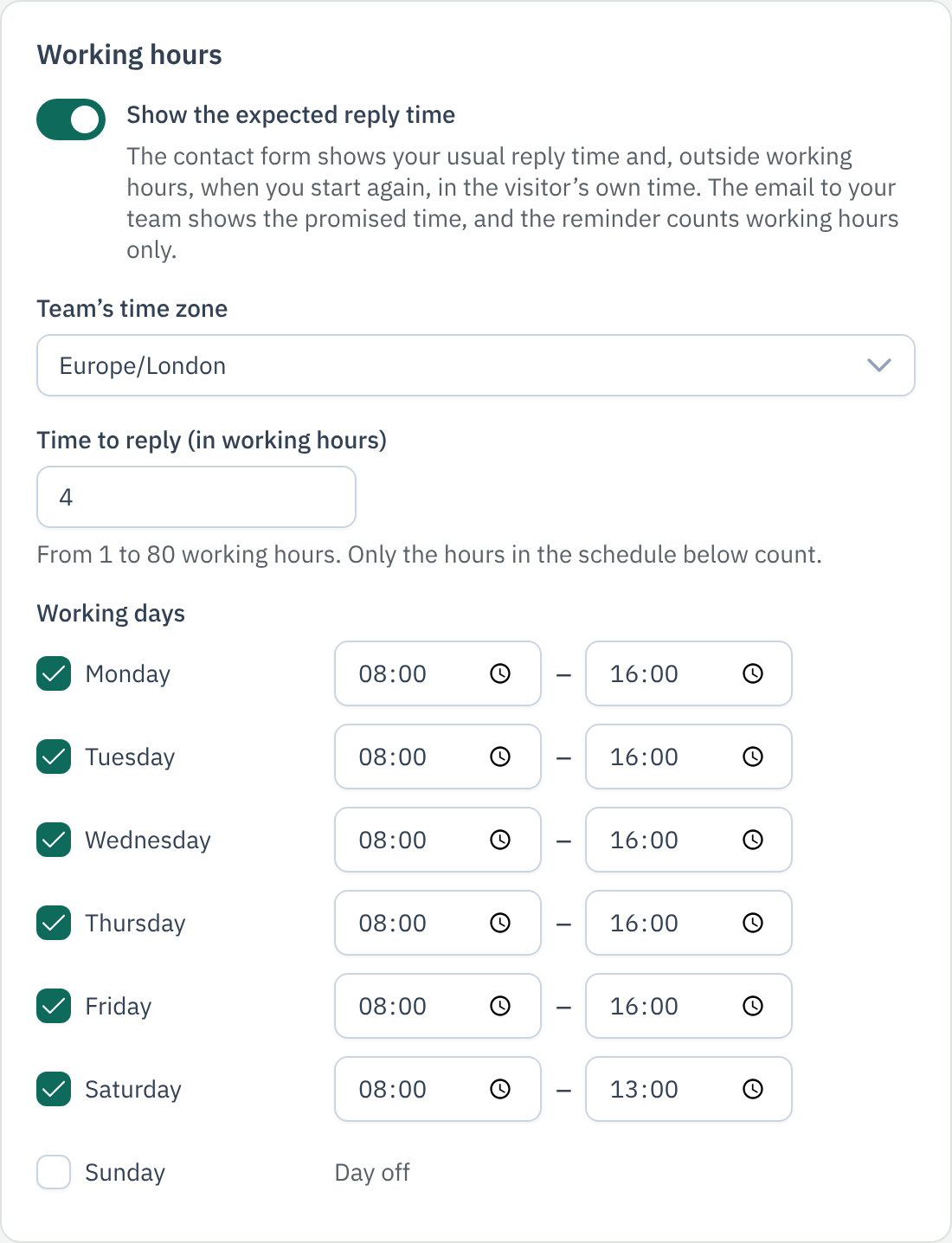
Turn on Show the expected reply time to tell visitors when they will hear from you.
- Team’s time zone: the time zone of the hours below.
- Time to reply (in working hours): how long your team usually needs to reply, from 1 to 80 working hours. Only the hours of the working days below count: with 9:00 to 17:00 on weekdays and 4 hours to reply, a request sent on Friday at 16:00 is due on Monday at 12:00.
- Working days: tick each day your team works and give its opening and closing time. A day that is not ticked is a day off.
With working hours on:
- the contact form shows your usual reply time and, outside working hours, when you start again, in the visitor’s own time;
- after sending, the visitor reads by when to expect a reply;
- the email to your team shows the time the visitor was promised, in your team’s time zone;
- the reminder counts working hours only, so a request from Friday evening does not count as waiting over the weekend.
Categories
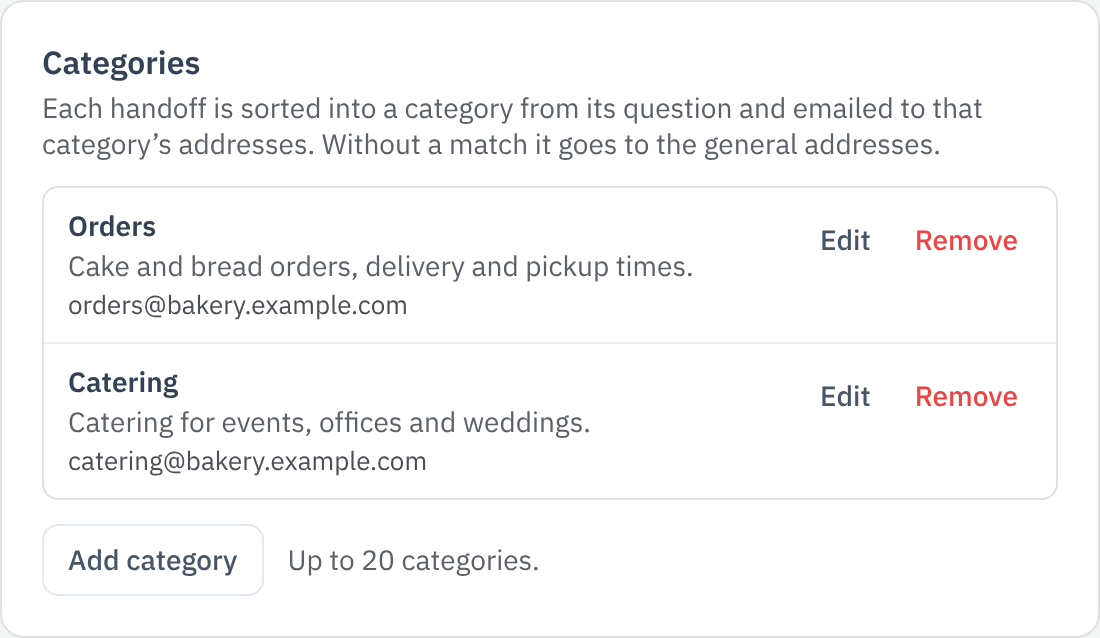
Categories send each request to the people who answer that kind of question, such as orders to the shop and invoices to accounting. Without categories every request goes to the general addresses.
Select Add category and fill in:
- Name: such as “Orders”. Up to 80 characters.
- Description: what questions belong here, in a sentence or two, such as “Orders, delivery and returns”. Asquo reads it to choose the category, so name the subjects visitors write about. Up to 300 characters.
- Staff addresses: where this category’s requests are emailed, at least one and up to 5.
- Booking page link: optional. Visitors whose question is in this category get this link in place of the general one.
An organization can have up to 20 categories. You add them once there is a general address saved, where requests that fit no category go.
When a visitor sends the form, Asquo chooses the category from the question and the end of the chat. The Handoff category of the knowledge sources the chat’s answers came from helps it choose. If no category fits, the request goes to the general addresses. Your team can choose another category on the request itself on the Handoffs page, which emails it to that category’s addresses.
Edit changes a category’s name, description, addresses or link. Remove stops sorting new requests into it; requests it already has keep its name, marked as removed, and knowledge sources with that category are left without one.
Addresses that do not get the emails
When a mail server refuses a request email, for example because the mailbox does not exist or is full, the address is marked here with the reason, under General addresses or in its category. Check the marked address with the person it belongs to. The mark goes away once an email reaches the address. The Owner and Admins see these marks, and a notification about them under the bell.