
Tests
Tests check that the assistant still answers the questions that matter after you change the knowledge. You keep a set of questions with the answer you expect, run them all at once, and see which answers are right. On a paid plan, open Tests in the menu.
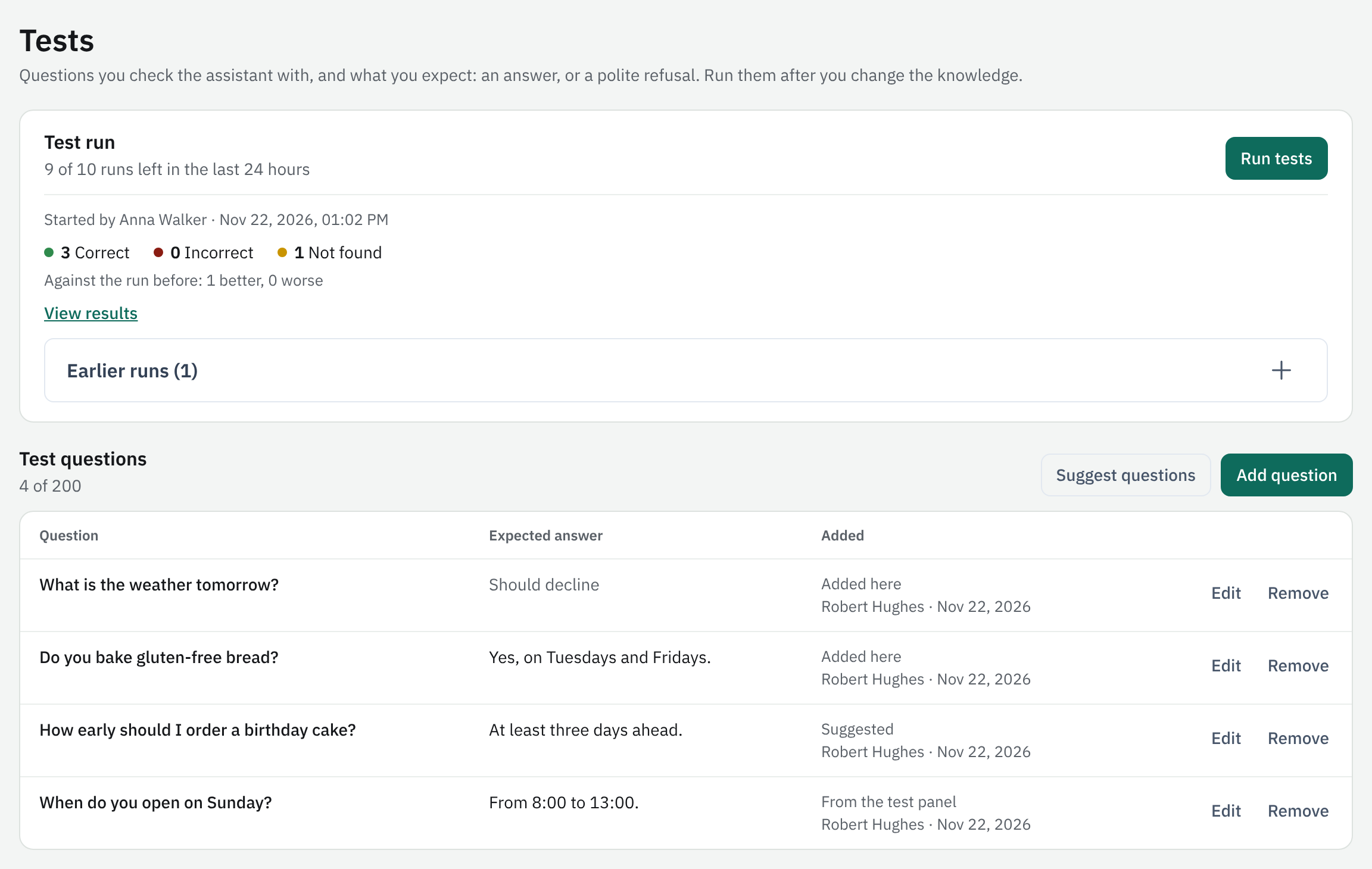
Add test questions
Under Test questions, select Add question:
- Question: written the way visitors ask it.
- The assistant should: Answer it, or Decline it for questions outside your topic, such as the weather. A declined question passes when the assistant says it has no answer.
- Expected answer: the facts a correct answer must contain, up to 8,000 characters. The wording may differ.
There are two more ways to add questions:
- Save as test under an answer in Test the assistant, or under the assistant’s answer in a chat on the Conversations page. The answer the assistant gave becomes the expected answer; check it before you save. Under an answer that found nothing, the expected answer is left for you to write.
- Suggest questions: the AI reads your live sources and suggests questions with the answers it found there, plus a few it should decline. Tick the ones to keep and select Save selected. Suggestions close to a question you already have say Similar to. You can ask for suggestions 5 times in 24 hours.
A set holds up to 200 questions, and the same question cannot be added twice. The Added column says where each question came from and who added it. Edit and Remove are in its row.
Run the tests
Select Run tests. The assistant answers every question as it would in the chat on your website, and the AI checks each answer against the expected one. A run takes a few minutes; you can leave the page meanwhile. Runs are not saved as chats and do not count toward the questions visitors can ask.
You can start 10 runs in 24 hours, one at a time. The last 50 runs are kept, under Earlier runs.
Read the results
Each answer is:
- Correct: it has the expected facts, backed by the sources it cites; or the question was to be declined and it was.
- Incorrect: it has a mistake or a claim its sources do not back; or the question was to be declined and the assistant answered.
- Not found: an answer was expected and the assistant found none.
The card also compares the run with the one before: how many answers got Better (became correct) and Worse (stopped being correct). View results lists every question with its verdict; Show answers shows the expected answer, this run’s answer and the run before’s, with the judge’s explanation and the sources.
When the new answer is right and the expected one is outdated, select Make it the test’s expected answer.
If a run stops before it finishes, for example when the AI provider does not reply, start a new one.
Who can use tests
Everyone in the organization can see the tests and their results. Owners, Admins and Editors can add, change and run them. Tests are on paid plans.