
Files
On a paid plan you can upload documents the assistant answers from, such as a price list, terms of service or a product catalog. Use files for what is not on your website, or what is there in a form Asquo does not read, such as text in pictures, pages behind a sign-in or documents kept on another website.
Upload files
On the Knowledge page, select Add knowledge, then Upload files. Drag the files into the window or select choose files; you can upload several at once.
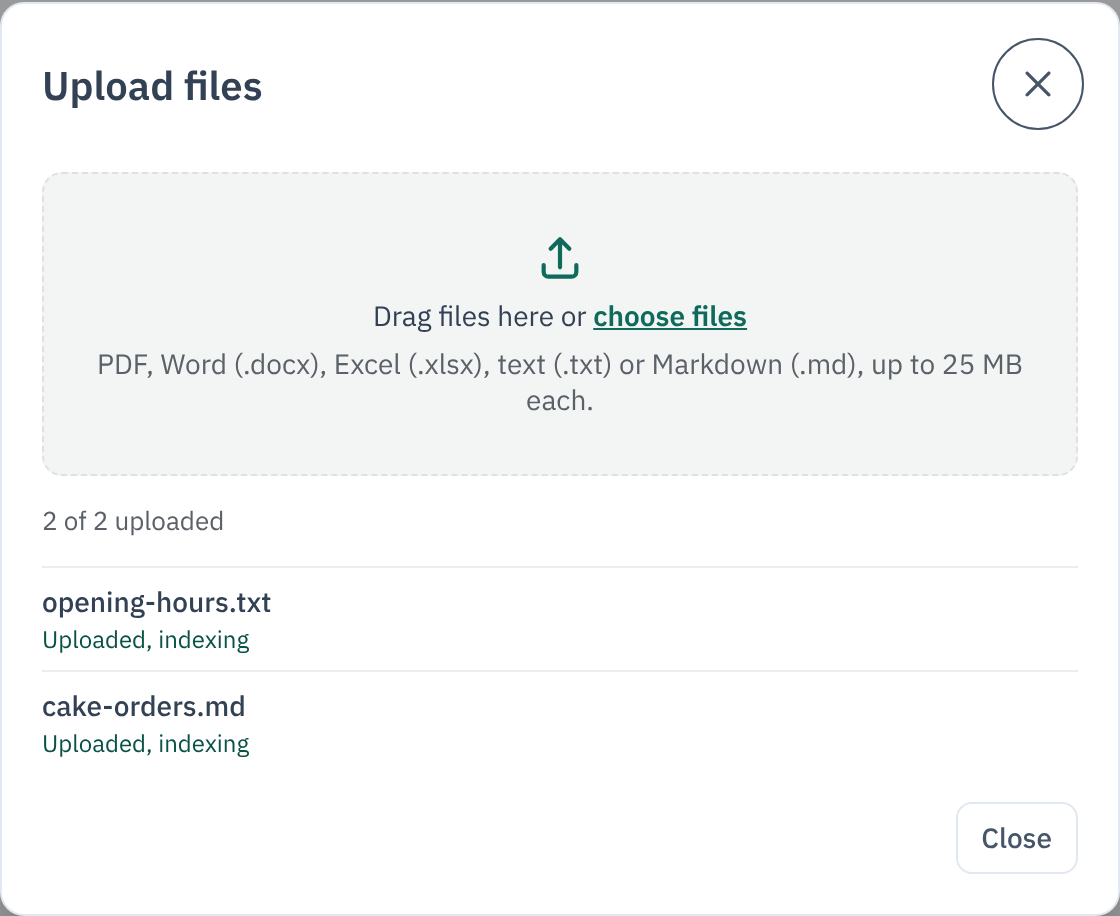
- Formats: PDF, Word (.docx), Excel (.xlsx), text (.txt) and Markdown (.md).
- Size: up to 25 MB each, and up to 2 GB for all the organization’s files together.
Each file becomes a source named after the file, without its extension; you can rename it in Edit. Its status goes from Queued through Processing to Indexed, and the assistant uses it from then on. Owners, Admins and Editors can upload files.
A file that is exactly the same as one you already uploaded, even under another name, is not added: the window says This file has already been uploaded. To upload a new version of a document, use Replace file (see below).
What is read
- PDF: the text of up to 2,000 pages; a longer PDF is not read. Scanned pages are images, not text, so they are not read: the assistant needs a version with text, for example one made with text recognition (OCR).
- Word: the text and tables.
- Excel: the visible sheets, up to 20,000 rows together and the first 200 columns; columns further right are ignored, and a workbook with more rows is not read. Hidden sheets are not read.
- Text and Markdown: all the text.
Keep each document on its subject and up to date. Several focused documents are found more easily than one long one about everything.
When a file is not read
The source’s status is then Failed, with the reason:
- The file is password-protected. Upload a version without a password.
- No text was found. The document is probably scanned; see above.
- The document is too long to index. Split it into smaller files.
- The file is damaged or could not be read, or looks unsafe. Save it again in its program and upload the new copy.
- The search index could not be built or something went wrong while indexing. Open the source’s actions and select Reindex.
Replace or reindex a file
When a document changes, open its actions and select Replace file, then choose the new version. The source keeps its name and settings, and until the new version is indexed the assistant answers from the old one. The new file may have another format.
Reindex reads the same file again; use it when indexing failed.
To stop using a file for a while, turn off Live in its row; Delete removes it for good. Settings such as priority and dates are described in Settings of every source.
Links & checks
When a document has links, or text the assistant should not take as instructions, its Edit dialog has a Links & checks tab.
- Links in the document lead to lists the sites the document links to. Answers from this source can link to them, so check that you know each one. Sites that are not one of your websites are marked: check that answers should send visitors there. There is no need to add them to Allowed websites.
- Each document is checked for text that reads like instructions to an AI assistant. The assistant reads such text with the rest of the document. If the check finds any, the source’s row shows a warning sign and the tab shows the text: check that it belongs there, and remove it from the document if it does not. In a long document only its first part is checked, and the tab says so.
Plans
Files are on paid plans. If your organization moves to the free plan, its files are paused: the assistant does not answer from them, and they are deleted on the date shown on the Knowledge page, unless you move back to a paid plan first.
On a paid plan files count toward the 500 sources of every kind.