
Website tab
The Website tab of the Assistant & widget page says where the chat may run and holds the code you put on your website.
Widget
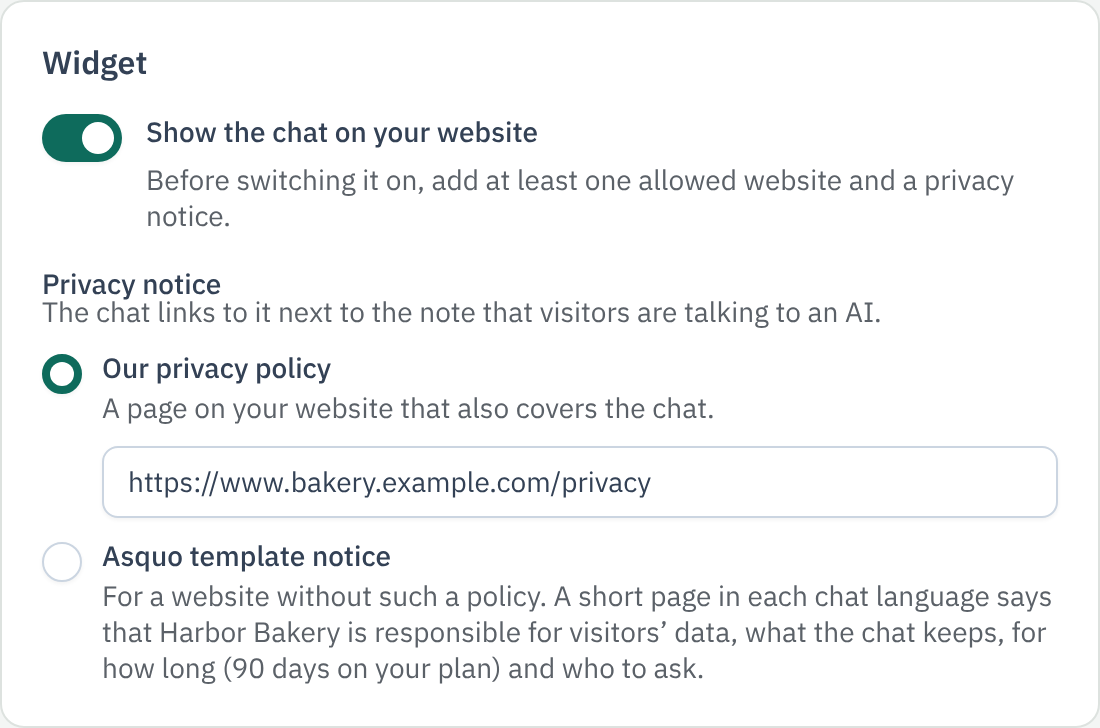
Show the chat on your website shows the chat button on the allowed websites, or hides it everywhere at once. It can be on only with at least one allowed website and a privacy notice. Select Save changes after you change it.
Privacy notice
The chat links to it next to the note that visitors are talking to an AI. Your organization is responsible for visitors’ data in the chat, so the notice is yours. Choose one:
- Our privacy policy: a page on your website that also covers the chat. Enter its link, starting with
https://, up to 500 characters. - Asquo template notice: for a website without such a policy. A short page in each chat language says that your organization is responsible for visitors’ data, what the chat keeps, for how long, and who to ask. It uses your organization’s name and the data retention the Owner sets on the Settings page. Enter the Address for questions about visitors’ data: it is shown publicly, so use a separate address such as privacy@ rather than a personal one. After a move to a plan that keeps chats for less time, it shows the longer period until the Owner confirms the shorter one or the wait ends, as chats are really kept. After you save, Open the notice shows it as visitors will see it. The template describes an ordinary website chat: if your organization uses the chat for anything it does not cover, such as health or other sensitive matters, or needs notices for other laws, choose your own policy and describe the chat there.
Install on your website
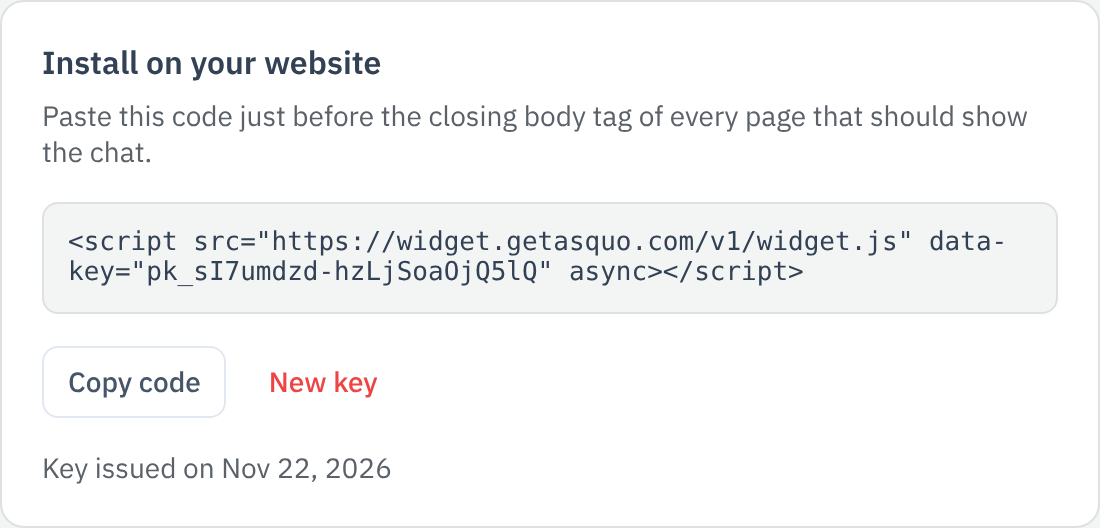
Select Copy code and paste the code into your website, just before the closing </body> tag of every page that should show the chat. Most website builders and content systems have a place for code added to every page, often called custom code, footer code or scripts: see Add the code to your website builder for WordPress, Wix, Shopify, Squarespace, Webflow and Shoper. The code is the same for every page and does not change when you change settings.
New key replaces the code. The current code and every open chat stop working at once, so paste the new code into your website straight after. You rarely need it: Allowed websites already keeps the chat off other websites.
Allowed websites
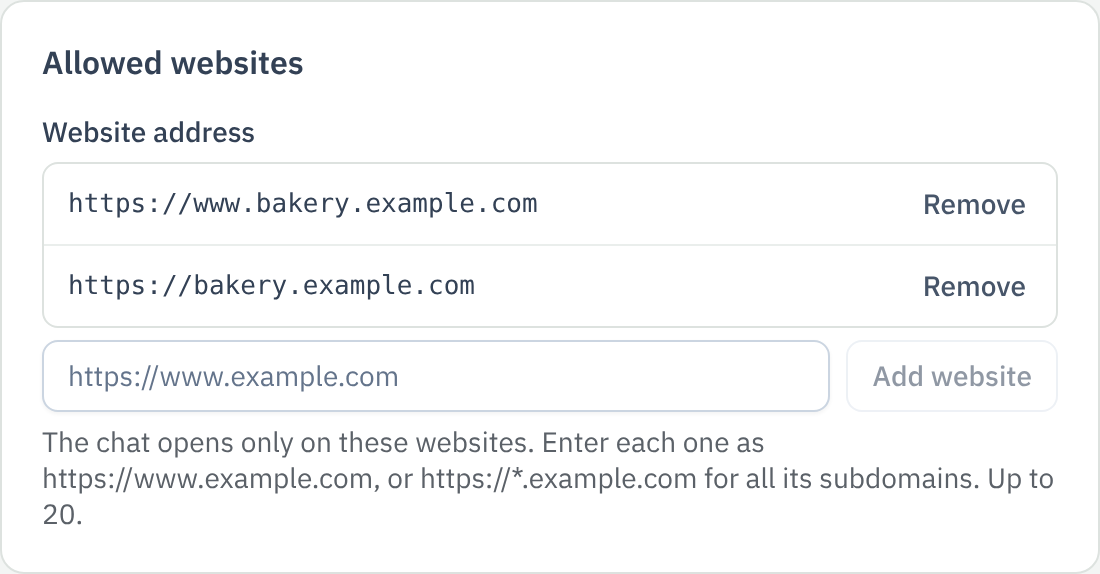
The chat opens only on these websites, even if someone copies your code elsewhere. Enter each address with https://, such as https://www.example.com; a path after it is left out. An address with and without www. is two entries, so add both if your website opens at both; they count as one website. https://*.example.com covers all subdomains, such as shop.example.com, but not example.com itself.
You can add up to 20 websites on a paid plan, and 1 on the free plan. To try the chat on a copy of your website on your own computer, add http://localhost with its port, such as http://localhost:8080.
Paused websites
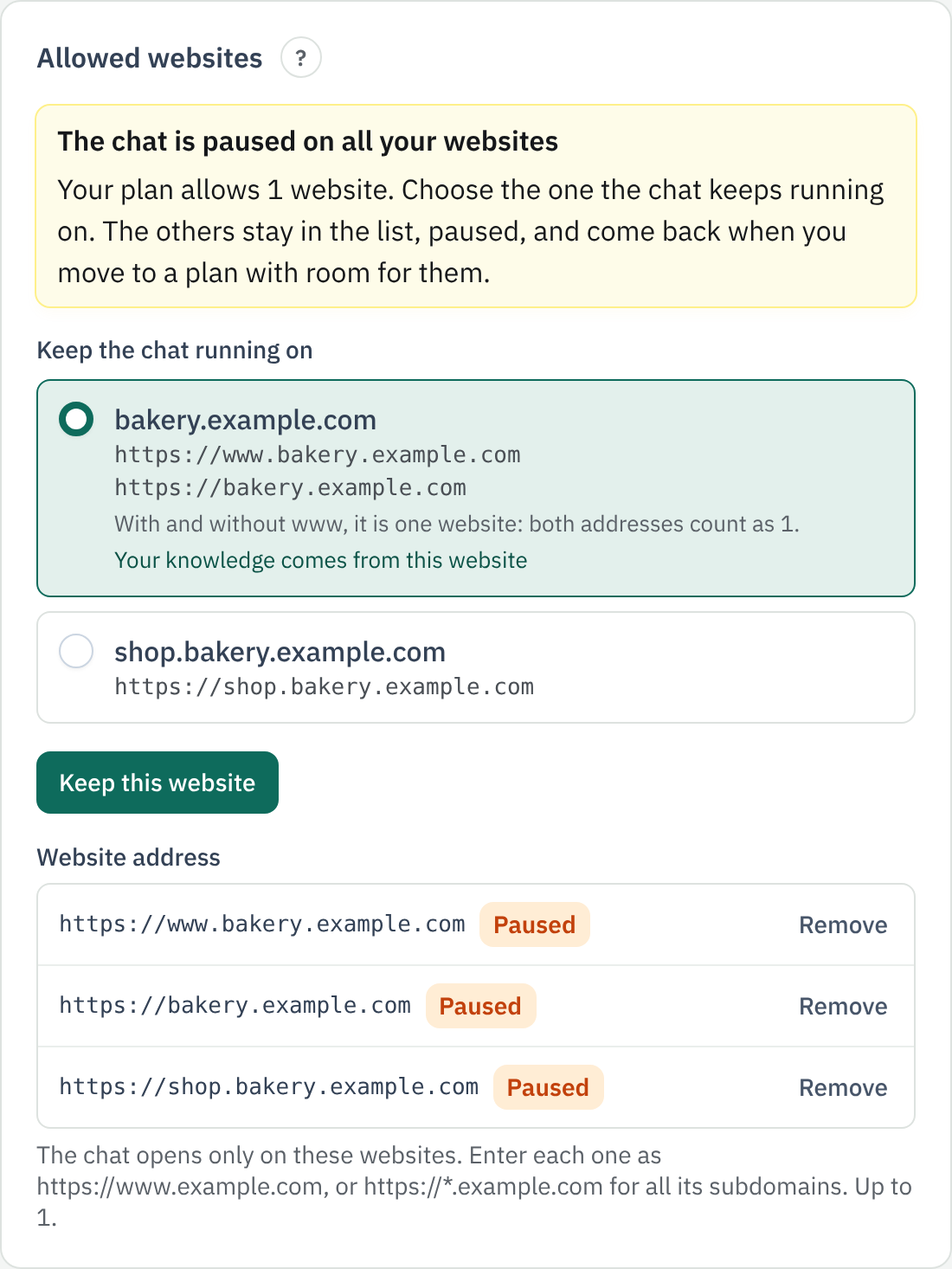
After a move to a plan that allows fewer websites, the chat is paused on all of them, and the card says so. Owners and Admins choose the website the chat keeps running on (on a plan that allows more than one, up to its number) and select Keep this website. The website your knowledge comes from is chosen first, and you can choose another. The others stay in the list, marked Paused, and come back when you move to a plan with room for them. To change the choice later, select Choose another website. Once you remove enough websites for the list to fit the plan, the chat runs on all that are left.
When the chat does not appear
- Show the chat on your website is off, or the change is not saved.
- The page’s address is not under Allowed websites: check
www.and subdomains. - The code is missing from that page, or it is an old code from before New key.
- The page opens with
http://instead ofhttps://: the chat runs only onhttps://pages. - Your website’s cache still serves the page without the code: clear it.