
Your first sign-in
On a paid plan you join your organization by invitation: its Owner or an Admin invites you by email. Signing in then takes your email address, your password and a 6-digit code from an app on your phone. To start the free plan on your own, see Start free.
Accept the invitation
The email is titled “Invitation to” and your organization’s name. Open the link in it: it works for 7 days. If it has run out, ask the person who invited you to invite you again.
The page shows the organization, the role you were invited with and your email address. Enter your name, choose a password and select Accept invitation. The password needs at least 12 characters, with at least 4 different ones. A short sentence is easy to remember and long enough.
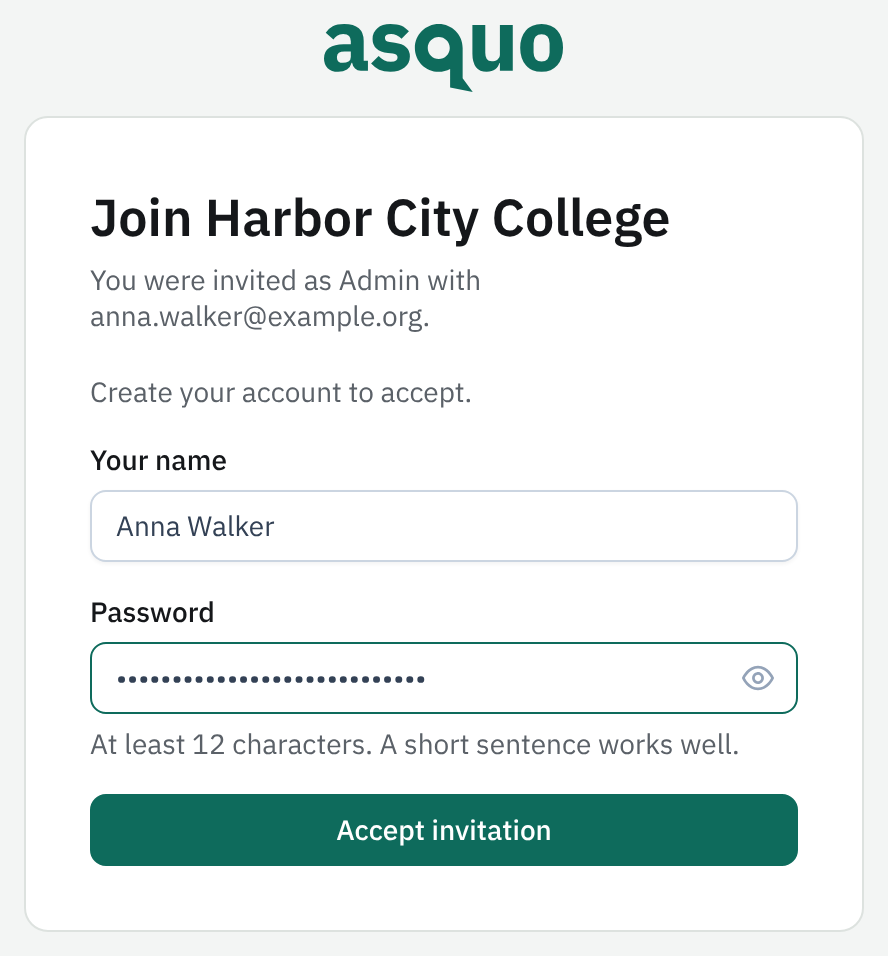
If you already have an Asquo account with this email address, for example in another organization, the page asks you to sign in first. You then accept with one button and keep your password.
Set up two-step sign-in
After accepting, sign in with your email address and password. On a paid plan two-step sign-in is required, so the next page sets it up:
- Install an authenticator app on your phone if you do not have one, such as Google Authenticator, Microsoft Authenticator or 1Password.
- In the app, add an account and scan the code on the page. If you cannot scan it, type the key shown under it.
- Enter the 6-digit code the app now shows and select Turn on.
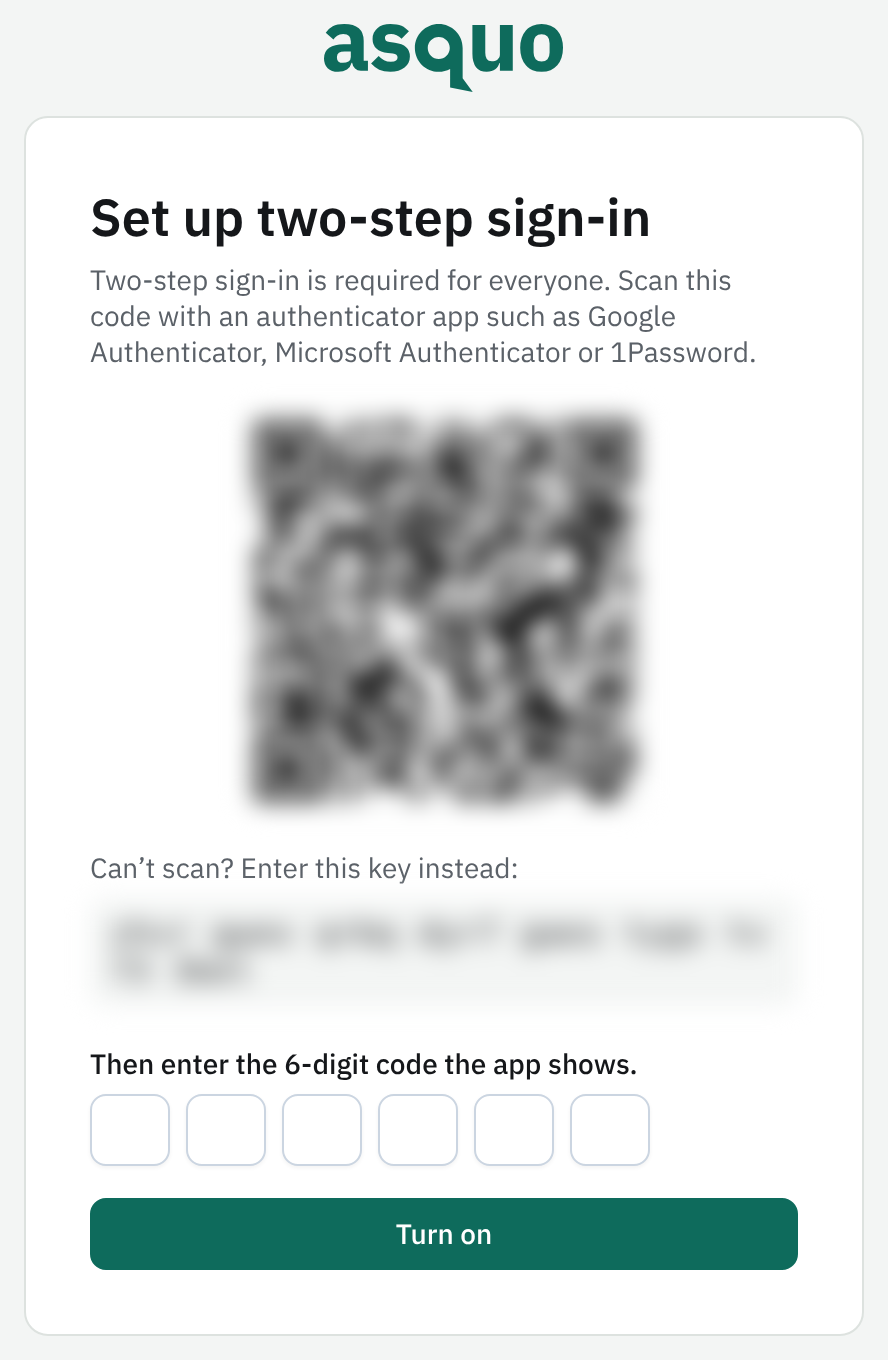
You have 10 minutes after entering your password to finish. If the time runs out, sign in again.
Save your recovery codes
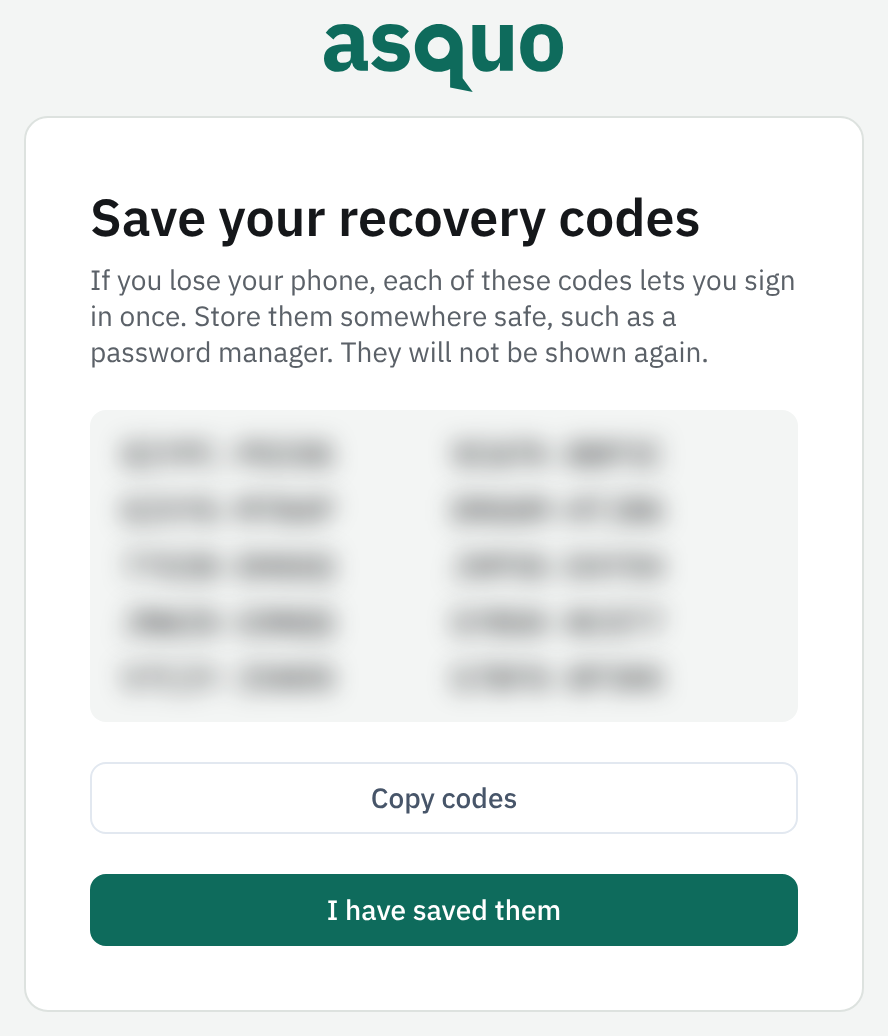
Next you see your recovery codes. Each one lets you sign in once without your phone, in place of the 6-digit code. They are shown only this once: select Copy codes, keep them somewhere safe, such as a password manager, and select I have saved them. The admin app opens.
Signing in later
Each time, enter your email address and password, then the 6-digit code from the app. On the free plan without two-step sign-in, the password is enough, and we offer two-step sign-in again.
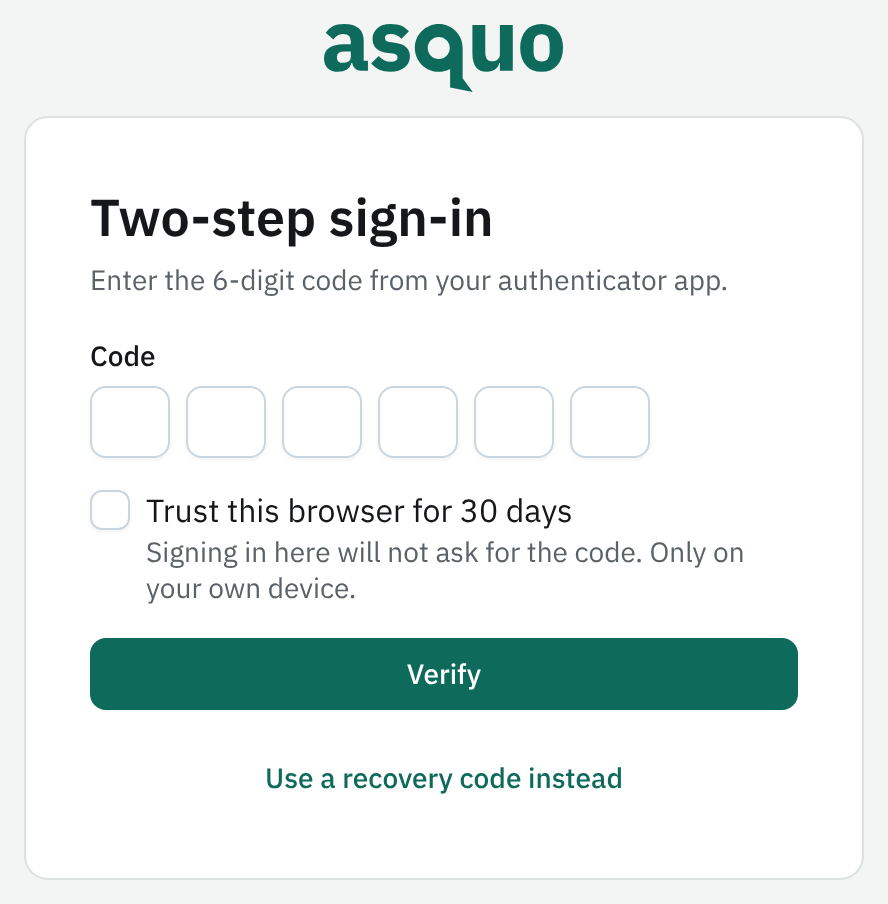
- On your own computer you can tick Trust this browser: it then signs in without the code for 30 days. Do not tick it on a shared computer. You can trust up to 10 browsers; trusting one more forgets the one you used least recently. Your Profile lists them, and you can remove any of them there.
- A few changes, such as inviting a team member, ask for the code even in a trusted browser.
- You are signed out after 8 hours without using the admin app, and 12 hours after you signed in, however active you are.
If you cannot sign in
Wrong password. After 5 wrong passwords in a row, the account is locked for 15 minutes. Wait and try again, or choose a new password.
Forgotten password. Select Forgot password? on the sign-in page and enter your email address. The link in the email works once, for 1 hour, and one address gets at most 3 such emails an hour. A new password signs you out everywhere else. You still need the code from your app.
Lost phone. Select Use a recovery code instead and enter one of your recovery codes; each works once. If you have none left, ask your organization’s Owner to reset your authenticator app on the Team page. At your next sign-in you then scan a new code, as the first time. If you are the Owner, or belong to more than one organization, write to us at support@getasquo.com.