
Your profile and sign-in
Your profile is yours alone: your password and the browsers you trust. Open it by selecting your email address at the bottom of the menu. Everyone has one, whatever their role.
How the first sign-in, two-step sign-in and recovery codes work is in Your first sign-in.
Change your password
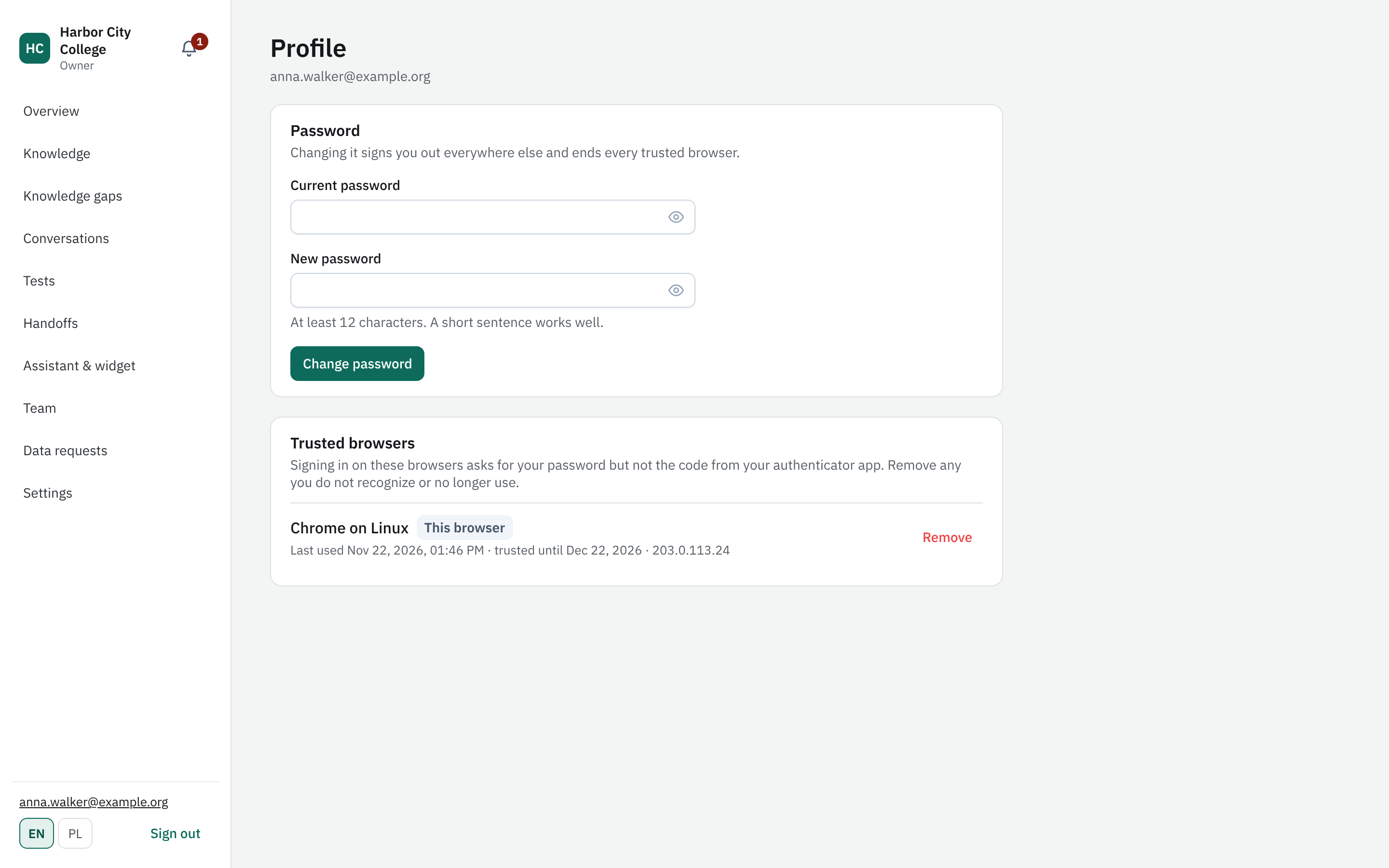
Enter your current password and the new one, and select Change password. The new password needs at least 12 characters, with at least 4 different ones.
If you signed in on a trusted browser without the code, Asquo asks for the 6-digit code from your authenticator app first. After the change you stay signed in here, and you are signed out everywhere else: every trusted browser has to enter the code again. You get an email that your password was changed. If you did not change it, write to us at support@getasquo.com.
If you forgot your password, you cannot change it here: select Forgot password? on the sign-in page instead, as Your first sign-in describes.
Trusted browsers
When you enter the code from your authenticator app and tick Trust this browser, that browser signs in for 30 days with your password alone. The Trusted browsers card lists them: which browser on which system, when it was last used, until when it is trusted, and the address it was last used from. This browser marks the one you are using.
- Remove a browser you do not recognize or no longer use: it asks for the code again at its next sign-in.
- Remove all, shown when you trust more than one browser, does this for every one of them at once.
You can trust up to 10 browsers; trusting one more forgets the one you used least recently.
The admin app’s language
The language buttons under your email address switch the admin app between the languages it has. Your choice is saved with your account, so it stays when you sign in on another computer, and emails Asquo sends you, such as about your password, are written in it.